
Are you struggling to keep 86’d items off DoorDash? Wondering why your BOGO stopped getting orders right after a menu update? Did the photos you uploaded to DoorDash disappear? Are customers seeing two of the same item?
I’ve made some of these mistakes myself. Early on, a menu edit in Toast changed the items behind a DoorDash BOGO, and the campaign just went flat. I learned that one the expensive way. Another time, an automation script created 109 duplicate items in Toast.
If you haven’t set up a separate app-only menu in Toast yet, start with how to run a separate Toast menu for DoorDash and Uber Eats. This post is for when the menu is built and something on the apps isn’t matching it.
Quick answers and quick fixes
- 86’d item came back? 86 it in Toast, not in the DoorDash or Uber Eats portal.
- Still showing after an 86? Set it back to In Stock, publish, then Out of Stock again and publish.
- BOGO went flat after a menu change? Open every item campaign and rebuild any that lost their items.
- Photos disappeared? The sync only runs from Toast to the apps. Recheck photos after every publish.
- Two of the same item? Only your app menu should be visible to online ordering partners.
- Change not showing at all? Make sure it was published, then ask the app to refresh your menu.
Why does my Toast menu keep falling out of sync?
Because the integration works differently from how most owners expect. Four things cause almost every problem I see:
- The sync runs one way. Toast says DoorDash pulls your menu directly from Toast, and after setup all menu changes are made in Toast Web (Toast). Anything you change on the app side can be overwritten by the next sync.
- Publish pushes everything. Hitting publish sends every pending change live at once, not just yours.
- The app has the final say. Per Toast, the ordering partner controls whether 86’d items appear on its menu (Toast). Some fixes need DoorDash or Uber, not Toast.
- Nobody keeps a record. Toast has no menu change log, so when something breaks, nobody can say what changed or when.
Why does an item I 86’d come back?
Usually because it was 86’d in the wrong place. On an integrated store, an item marked out of stock in DoorDash’s menu manager doesn’t stick. In my experience those 86s revert after 24 hours. DoorDash’s own help page says POS-integrated stores should mark items out of stock from their POS (DoorDash).
How to fix it:
- 86 it in Toast. On the POS, or in Toast Web under the item’s Advanced properties, set inventory to Out of Stock and publish. Toast says 86s sync to DoorDash in near real time.
- If it still shows, Toast’s own fix is to set the item back to In Stock and publish, then Out of Stock again and publish (Toast). If that doesn’t work, contact the app.
- 86 limited items the moment they run out. Toast notes DoorDash only checks whether an item is 86’d, not how many you have left. Orders keep coming until you flip it.
- Check your modifiers. Toast says nested modifiers should only go two layers deep, and deeper ones cause sync issues. One franchisee we worked with traced their 86 problem to this, though we never confirmed it. Fix the structure, but don’t flatten modifiers to make a sync problem go away. Customers like modifying their orders.
Why did my BOGO stop working after I changed the menu?
Editing items in Toast can change their IDs on the app side. An item-level campaign like a BOGO is tied to the old item, so it stops redeeming. There’s no error and no email. The campaign just goes flat, and you notice when the new customers dry up.
How to fix it (and prevent it):
- Before you publish, write down every live item-level campaign: the items, the audience, the schedule and who created it. On DoorDash, only the user who created a campaign can edit it.
- Publish on a Monday, never right before a busy weekend.
- Right after publishing, open each item campaign and check the items are still attached. Rebuild any that aren’t. On Uber Eats a live campaign can’t be edited, only ended, so you end it and set it up again.
- Check redemptions the next day. A campaign that had orders every day and suddenly shows none is the tell.
- Talk to the rep first on co-funded DoorDash campaigns. Recreating one loses the co-funding. More on that in getting co-funding and ad credits.
Photos matter here too. On DoorDash, an item without a photo can’t carry a BOGO, so a photo lost in a sync can quietly drop an item out of your promo.
Why do my DoorDash photos keep getting overwritten?
Because photos follow the same one-way sync. Toast says photos sync automatically from Toast to DoorDash, as 16:9 images in JPG or PNG, no larger than 2 MB and at least 1400 × 800 pixels. DoorDash then reviews them, which takes three to five business days. If they meet the specs and still aren’t showing after five business days, open a ticket with DoorDash.
Photos you upload straight into DoorDash can be replaced by a later sync. Toast also compresses images. So for the photos that matter, we upload directly to each app and then check them again after every publish. It’s tedious, but losing your best photo costs orders. I aim for 90% to 95% of items carrying a photo, judged on a phone. Sizes for every app are in the image size guide.
Why did changes I hadn’t finished go live?
Because someone hit publish. In Toast, publishing pushes every pending change, including a half-finished price update somebody else saved last week. That’s how a test price can end up live on DoorDash on a Friday night.
The fix is a habit. One person owns publishing. Changes get saved and left unpublished until the owner has looked them over. We send the owner a short list of what’s staged, marked “saved, not published.” And since Toast has no change log, keep your own: the date, what changed and who changed it. When sales dip two weeks later, that note is how you find the cause (the rest of that checklist is in why your delivery sales dropped).
Why do I see duplicate items on DoorDash?
Toast says duplicates usually happen when both your in-store menu and your delivery menu are visible to partners. Make only the app menu visible to online ordering partners. Then go to Takeout & Delivery, then Third-Party Ordering, pick the app, select Edit Menus and confirm only the right menu is switched on.
The other way to get duplicates is bulk changes. The script that created 109 duplicate items in Toast taught me to test any bulk change on one item first, and to count the items before and after.
What if I use Otter or other middleware?
Kitchens running several brands often have middleware like Otter between the POS and the apps. That adds a second place a change can go wrong. Decide which system owns each brand’s menu, make changes only there, and compare the middleware menu with the live app menu after every update. When a brand needs a break, pause it rather than deleting it, so you aren’t rebuilding the menu and its campaigns later. If you’re weighing middleware for separate app prices, I covered the options in the separate Toast menu post.
What if the menu still won’t sync?
Work through Toast’s own checklist before you call anyone:
- Look for empty modifier groups, empty menu groups and deeply nested modifiers. Toast says these commonly stop menus from appearing or syncing.
- If a menu’s “Available Every Day” is set to No, at least one day has to be selected.
- Check the warnings on the Third-Party Ordering page. Toast notes not every warning stops a sync.
- Re-save the item with a small edit and publish again.
- Ask the app to refresh your menu. For DoorDash, ask whether a menu ingestion is needed, which Toast describes as deeper than a standard sync.
Then check the result the way a customer would, on your phone, with a delivery address inside your zone.
Example: the troubleshooting map we use
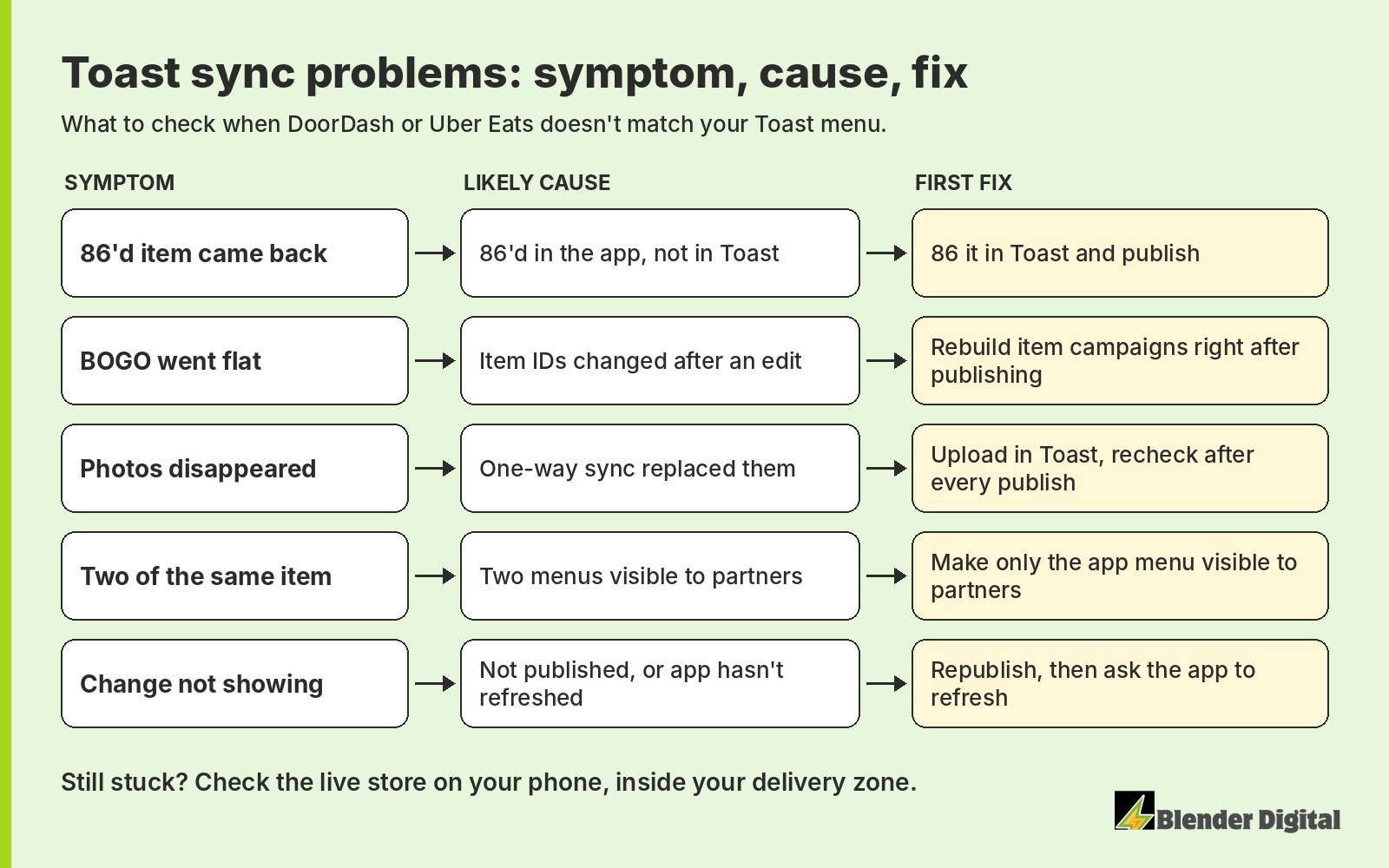
These five symptoms cover most of the sync problems we run into. Find yours on the left and work across.
How does Blender handle Toast menu changes?
We treat the menu as part of the campaigns, because a menu edit can switch a campaign off without anyone noticing. Changes get staged and left unpublished until the owner signs off. They go live on a Monday. Right after, we check every item campaign is still attached and rebuild any that aren’t, and we look at the photos on each app. That check is built into our campaign management, and menu fixes are part of the first two weeks of every campaign strategy engagement.
It matters because item campaigns only pay off while they keep running. For a fast-casual franchise in New Jersey, a first-order BOGO brought in 189 new customers on Uber Eats in September 2026, with $8,858 in sales on $3,465 of offer cost. A broken item ID would have shut that off quietly.
If your menu and the apps never seem to agree, send us a few screenshots of what you’re seeing. Blender’s here to help. Book a free 30-minute call and we’ll go through it with you.
FAQ
Why do items I 86 on DoorDash come back?
On a store connected to Toast, the menu comes from Toast. An 86 set in DoorDash’s menu manager doesn’t stick, and in our experience it reverts after 24 hours. 86 the item in Toast instead. DoorDash’s help center also says POS-integrated stores should mark items out of stock from their POS.
How long does a Toast menu change take to show on DoorDash?
Toast says published changes sync to DoorDash in near real time. If a change doesn’t show, check that it was actually published, re-save it with a small edit and publish again, then ask DoorDash to refresh the menu or run a menu ingestion.
Will changing my Toast menu break my DoorDash promotions?
It can. Editing items can change their IDs on DoorDash, and item-level campaigns like a BOGO stop redeeming without any warning. Publish on a Monday and check or rebuild every item campaign right after.
Why did my DoorDash photos disappear?
Photos sync one way, from Toast to DoorDash. A photo uploaded directly in DoorDash can be replaced by a later sync. Upload photos that meet DoorDash’s specs in Toast, or upload directly and recheck them after every publish.
Why are there duplicate items on my DoorDash menu?
Usually because both the in-store menu and the app menu are visible to online ordering partners. Make only the app menu visible to partners and confirm only that menu is switched on for each app under Third-Party Ordering.