
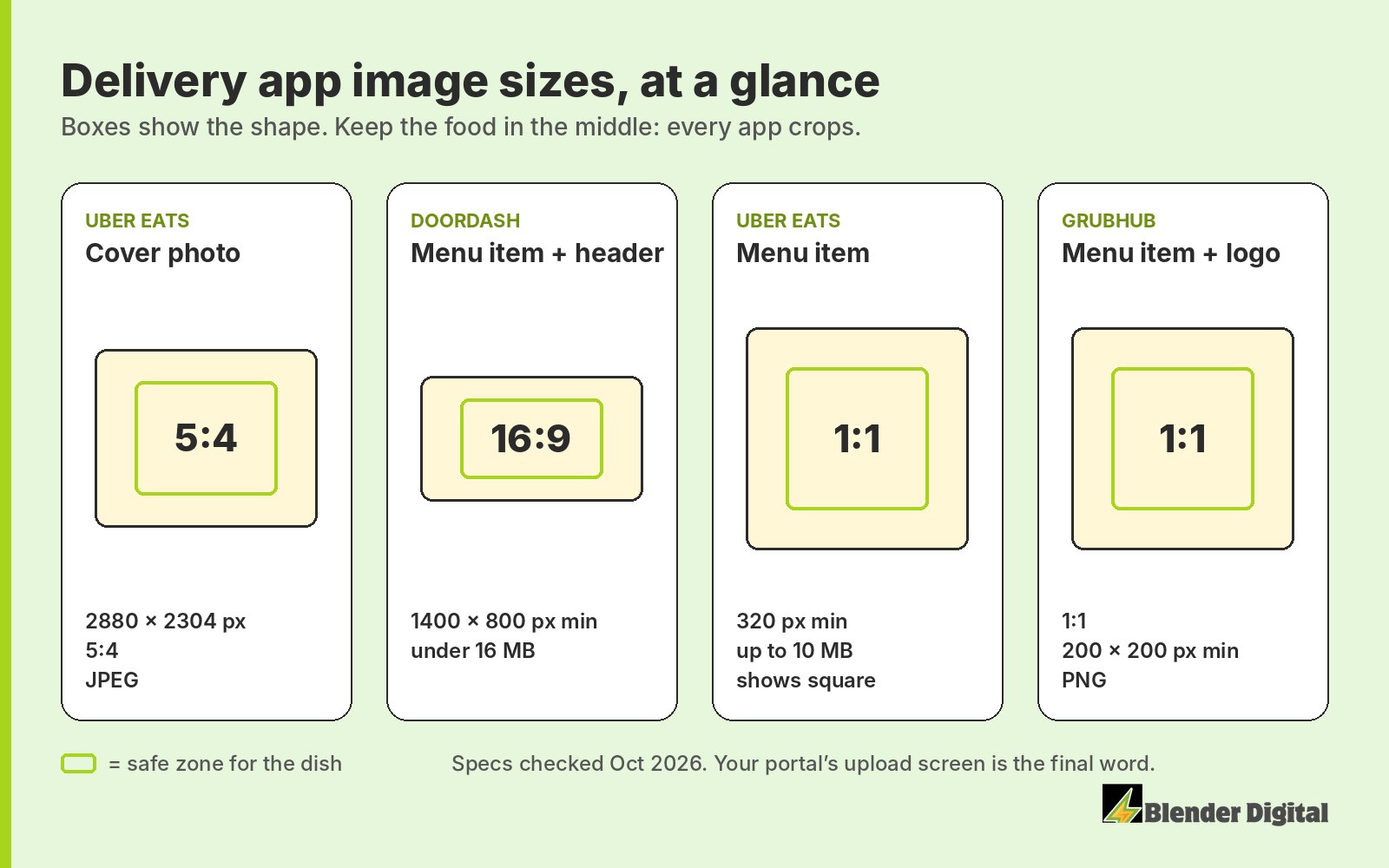
Every delivery app wants a different shape. Uber Eats wants a 5:4 cover, DoorDash wants wide 16:9 photos, and Grubhub wants squares. Upload one photo everywhere and something gets cropped badly, usually the part with the food on it.
Below are the short answers first, then the full specs for each platform. Where I checked a spec inside a merchant portal myself, I say so. Where a number only comes from a help-center page, I link it. Your own upload screen is always the final word.
Quick answers
What size is the Uber Eats cover image (banner)?
2880 × 2304 px, a 5:4 ratio, as a JPEG. It's the big photo at the top of your store. Uber shows it at different crops on the app and on the web, so keep the dish in the middle and away from the edges.
What size are Uber Eats menu item photos?
At least 320 px wide and tall, up to 10 MB, as JPG, PNG, GIF, HEIC or WEBP. That's what Uber Eats Manager says on the item photo upload screen as of October 2026. Uber often shows item photos as square thumbnails, so a square or near-square crop is the safe choice.
What size is the DoorDash header image?
1400 × 800 px minimum, under 2 MB. DoorDash crops the header differently in the app and on desktop, so leave room around the food. A scene or a spread of dishes works. A tiled collage gets rejected.
What are DoorDash's photo guidelines for menu items?
1400 × 800 px minimum, 16:9, JPG or PNG, under 16 MB. One clearly identifiable item, centered, with no text, borders, watermarks or collages. One thing DoorDash's guide doesn't stress: an item without a photo can't be used in a buy-one-get-one promo.
What are Grubhub's photo guidelines?
Square (1:1), at least 200 × 200 px, PNG. Logos need a background color (white is fine). Anything that isn't food, like coupons, specials graphics or pictures of your dining room, can be rejected.
What actually matters more than the exact pixels
Getting the size right gets your photo accepted. It doesn't sell food. After managing storefronts for 12+ restaurant brands, these are the photo rules I give every client:
- Coverage beats perfection. Aim for 90–95% of your menu items with a photo. It's an online medium, and items without pictures don't sell. A decent phone photo of every item beats five beautiful shots and thirty blank tiles.
- No photo, no BOGO on DoorDash. DoorDash won't let you run a buy-one-get-one on an item without a photo. Uber Eats doesn't have that rule, which catches people out when they copy a promo from one app to the other.
- Don't use AI food photos. The platforms ban them and are getting better at spotting them. A regular picture, even an average one, goes much further.
- Check it on your phone. Most orders come from the app, so judge your photos on a phone screen, not your laptop.
- Know where your photos come from. If your menu syncs from Toast, the sync usually runs one way. A photo you upload directly in DoorDash can get overwritten the next time the menu pushes from the POS.
- The free photographer is worth it, with one catch. The platforms will sometimes send a photographer for free. The files tend to come back in mixed sizes, so plan to re-crop them for each app.
Customers look at price first, the picture second, and the description third. Once your photos are in, the next thing to check is your pricing. Our markup parity calculator shows what your app prices need to be to match in-store, and if your photos are the wrong shape, the delivery image resizer crops one photo into every size above.
Quick Master Checklist
| Platform | Placement | Working Specification |
|---|---|---|
| DoorDash | Menu item | 1400 × 800 px minimum; 16:9; JPG/JPEG/PNG; under 16 MB |
| DoorDash | Logo | 230 × 230 px; square; JPG/JPEG/PNG; under 2 MB |
| DoorDash | Header / carousel | 1400 × 800 px minimum; under 2 MB; displayed differently on web and app |
| Uber Eats | Cover | 2880 × 2304 px; 5:4; JPEG |
| Uber Eats | Menu item | JPG/PNG/GIF/HEIC/WEBP; max 10 MB; at least 320 px wide and tall (checked in Uber Eats Manager, Oct 2026) |
| Grubhub | Menu / logo | 1:1 square; at least 200 × 200 px; PNG; logo needs a background |
| Toast | Standard menu item | 750 × 450 px rectangle; PNG is the safest current standard |
| Toast | Online Ordering Pro item | 1:1, 4:3, or 16:9; at least one dimension 1000 px |
| Toast | Brand images | Requirements vary by legacy vs. Online Ordering Pro; see detailed section |
| Square | Item image | 1:1; at least 2000 × 2000 px recommended; JPG/JPEG/PNG/GIF; max 15 MB |
| Clover | Menu item | No stable public U.S. dimension standard found; use a high-resolution uncropped master and verify the dashboard prompt |
| ezCater | Banner | Minimum 1200 × 800 px; submit full-size and uncropped with space around food |
| ezCater | Logo | Horizontal logo works best; approximately 3:1 recommended |
Don't trust a search summary for these numbers
Search summaries often combine old help-center pages, third-party recommendations, and placement-specific rules. For example, a Grubhub 2400 × 600 header recommendation is commonly repeated, but Grubhub’s public merchant page currently verifies its square menu and logo rules—not that header dimension. Use unverified dimensions only after checking your portal or confirming with support.
DoorDash Image Requirements
Menu item photos
- Minimum: 1400 × 800 px
- Aspect ratio: 16:9 landscape
- Format: JPG, JPEG, or PNG
- File size: under 16 MB
- Creative: one clearly identifiable item, centered, no text overlays, borders, watermarks, or collages
Logo
- 230 × 230 px
- Square 1:1 works best
- Under 2 MB
Header / carousel / hero
- 1400 × 800 px minimum
- Under 2 MB
- DoorDash may render the asset at different crops on web and in the app, so keep important food and branding near the center
- Use a scene or several dishes, but avoid a tiled collage
Source: DoorDash photo guidance.
Uber Eats Image Requirements
Cover photo
- 2880 × 2304 px
- 5:4 aspect ratio
- JPEG
- Centered, level, properly cropped, and representative of products customers can order
- Avoid people unless you have appropriate image rights; do not let branding overpower the food
Menu item photos
- JPG, PNG, GIF, HEIC, or WEBP
- Maximum 10 MB
- At least 320 px for both width and height
- Older Uber help pages list a 550 × 440 px minimum. The upload screen in Uber Eats Manager now says 320 px, but a larger file still looks sharper on big phones
- Show one item, in focus, well lit, and centered with enough margin for automatic cropping
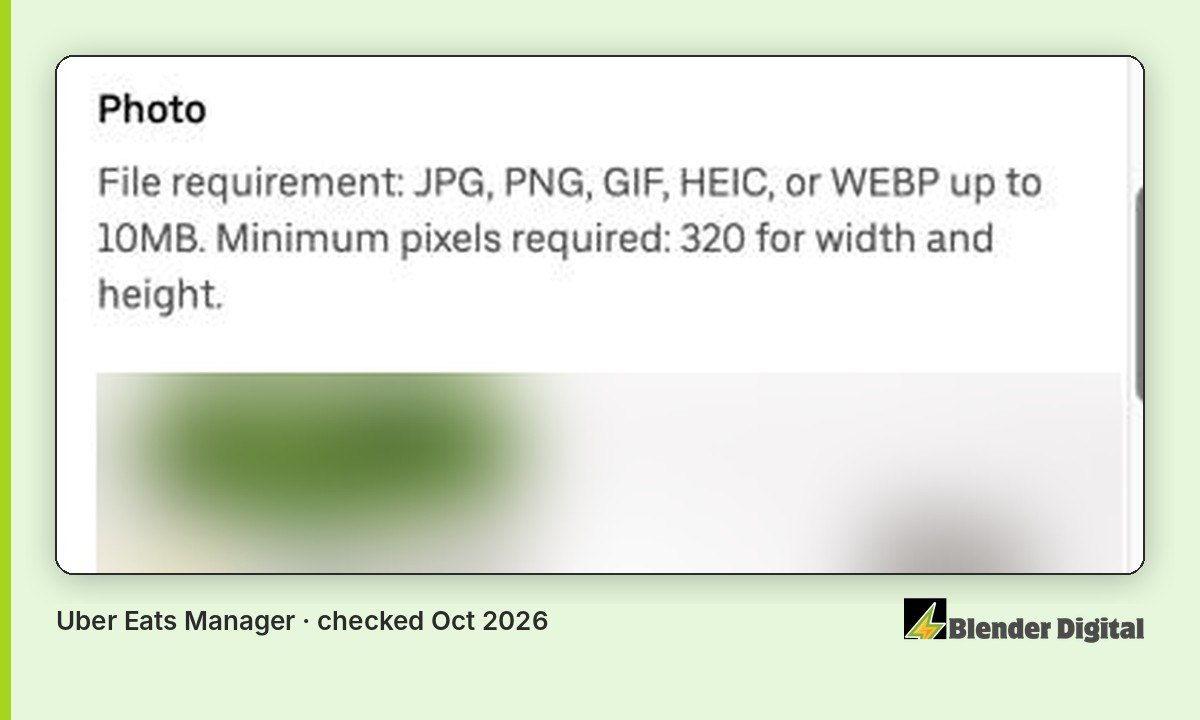
Uber Eats crop warning
Item images may be displayed as square thumbnails even when the uploaded file is rectangular. Keep the dish inside a centered “safe zone” and do not place garnishes, packaging, or important details against the edges.
Sources: Uber merchant photo guidelines.
Grubhub Image Requirements
Publicly verified menu and logo rules
- 1:1 square
- At least 200 × 200 px
- PNG
- Logos require a background color; white is acceptable
- Non-logo images must be food—coupons, specials graphics, and restaurant interiors/exteriors may be rejected
- Images are screened for unsafe content and copyright matches
Grubhub header guidance varies
Some partner guides recommend a 4:1, 2400 × 600 JPEG header. Because that number is not currently stated on Grubhub’s public merchant criteria page, confirm the required dimensions in your Grubhub portal before creating a final header export.
Source: Grubhub menu and photo criteria.
Toast Image Requirements
Toast has multiple storefront products and its documentation can show different specifications for legacy Online Ordering and Online Ordering Pro.
Standard Toast Online Ordering menu items
- 750 × 450 px rectangle
- PNG is the safest current recommendation
- Some Toast pages also state JPG or PNG and a 5 MB maximum
Toast Online Ordering Pro menu items
- Supports 1:1, 4:3, and 16:9 layouts
- Minimum width or height of 1000 px recommended
- The selected layout fills its container, so mismatched photos will crop
Logo, banner, favicon, and eGift
- Online Ordering Pro supports JPG, JPEG, PNG, WebP, or SVG for logo, favicon, and banner; max 5 MB
- Legacy guidance may show a square logo around 180–230 px minimum and a banner ranging from 1400 × 788 to 1920 × 1080 depending on product/version
- eGift card image guidance: minimum 640 × 400 px; max 5 MB
Toast operational warnings
- Publishing is not instant: Toast says menu images may take at least two hours to appear after saving and publishing.
- Know which storefront you use: legacy Online Ordering and Online Ordering Pro do not use identical image rules.
- Menu Builder retirement: Toast states Menu Builder will be retired September 1, 2026; use Menu Manager for ongoing maintenance.
- Third-party sync: if Toast is your menu source of truth, an image change can flow into connected delivery channels. Check the integration mapping before replacing images in bulk.
Sources: Toast standard Online Ordering, Online Ordering Pro image requirements, and Online Ordering Pro branding.
Square Image Requirements
Standard Square item library
- JPG, JPEG, PNG, or GIF
- Maximum 15 MB
- Square 1:1 recommended
- At least 2000 × 2000 px recommended
Square for Franchises
- Main and secondary square images: 500 × 500 px
- Main and secondary rectangular images: 955 × 500 px
- Cart and modifier images: 500 × 500 px
- Category icon: 200 × 200 px
- JPG/JPEG/PNG; up to 2 MB
Square sync and visibility warnings
- One image follows the item: Square states that an item-catalog image syncs across POS devices and Square Online; you cannot use a different image for the same item on each.
- Item changes can be global: updates to an item apply wherever that item appears, so confirm every sales channel before editing.
- Menus and items have separate visibility: assigning a menu to an online or delivery channel does not automatically guarantee every item is enabled for the same location and channel.
- Bulk image matching can be wrong: Square’s automated matching only attaches images when confidence is high; review matches before saving.
- Category images may not migrate: Square documents cases where old category images do not sync into the newer Menus dashboard and must be re-added to menu groups.
Sources: Square item images, Square for Franchises, and Square menu channels.
Clover Image Guidance
Clover’s public U.S. pages explain how menus sync across Clover Online Ordering, the Clover app, POS devices, and certain delivery integrations, but they do not currently publish one dependable U.S. image-dimension table for every restaurant setup.
Safest working approach
- Keep a full-resolution master photo with extra space around the dish
- Prepare 1:1, 4:3, and 16:9 exports so you can respond to the crop shown in your dashboard
- Use JPG or PNG unless the upload screen says otherwise
- Confirm the size and crop in your own Clover dashboard, kiosk, mobile app, and ordering webpage
Clover integration warning
Clover markets a single-menu model in which online-ordering changes sync automatically, and its Grubhub integration can sync the Grubhub menu with Clover inventory. That convenience also means a photo or menu change made at the source can propagate farther than expected. Before replacing images, identify whether Clover, Grubhub, or another middleware provider is the actual source of truth.
Sources: Clover Online Ordering and Clover delivery integrations.
ezCater Image Requirements
Banner image
- Minimum 1200 × 800 px
- Submit the full-size, uncropped photo
- Leave generous space around the food because ezCater automatically produces different desktop and mobile crops
- Food only—avoid text, logos, prep areas, and distracting elements
Logo
- A horizontal logo uses the available space best
- Approximately 3:1 is recommended
- Square or round logos can be used but may appear smaller
Sources: ezCater banner cropping and ezCater logo guidance.
POS and Integration Risks to Check Before Uploading
Run this checklist before changing any restaurant image
- Find the source of truth: Is the photo controlled in DoorDash/Uber/Grubhub directly, or inherited from Toast, Square, Clover, Olo, Chowly, Deliverect, ItsaCheckmate, or another integrator?
- Check overwrite direction: Some integrations push POS data outward; others periodically pull marketplace changes back in.
- Avoid simultaneous edits: Editing the same item in the POS and marketplace during a sync window can cause reversions or duplicates.
- Test one item first: Replace one low-risk image, publish, and inspect every connected storefront before completing a bulk update.
- Allow for review and propagation: approval queues, cache delays, and menu publishing can take hours or longer.
- Do not delete originals: preserve the master and every platform export so you can roll back quickly.
- Audit every device: desktop, mobile app, mobile web, kiosk, and POS tiles can all use different crops.
Best Cross-Platform Photo Workflow
- Shoot or save a high-resolution master with the dish centered and at least 15–20% breathing room.
- Create four exports: 1:1, 5:4, 4:3, and 16:9.
- Create a separate wide environmental/banner photo rather than stretching a menu-item close-up.
- Keep text, logos, utensils, and garnishes out of the crop-risk edges.
- Name files consistently: platform-item-placement-dimensions-version.jpg.
- Track the upload date, source system, approval status, and every channel where the image appears.
Recommended master-file target
Start with at least 3000 px on the longest side. This is not a universal platform requirement; it is a practical production standard that gives you enough resolution to create the common crops without enlarging a small file.
FAQ
Can one photo work everywhere?
One high-resolution master can be the source, but do not upload the identical crop everywhere. Export versions for 1:1, 5:4, 4:3, and 16:9.
Should menu images include text or prices?
Usually no. Text, promotional claims, prices, watermarks, borders, and coupons increase rejection risk and become outdated quickly.
Why did my photo change after I replaced it?
The image may be controlled by a connected POS or integration, cached by the marketplace, awaiting approval, or automatically cropped for the placement. Check the source-of-truth system first.
Need Help Cleaning Up Your Storefront Images?
Blender Digital can audit the full storefront
We help restaurant operators identify image problems, broken menu mappings, storefront friction, promotion issues, and revenue leakage across DoorDash, Uber Eats, Grubhub, Toast, and connected ordering systems.